



Making the Most of Your GMC Infotainment System

Experience Professional Grade Connectivity
At Robertson’s GMC, we know our drivers expect nothing less than Professional Grade capability and premium quality in every vehicle. This dedication to excellence isn’t just under the hood and in the cabin materials—it’s also in the cutting-edge technology that keeps you connected and in control: the GMC Infotainment System.
Today’s GMC Infotainment Systems* are capable of way more than just playing the radio. Thanks to platforms such as available Google built-in*, available Amazon Alexa Built-in*, Apple CarPlay®*, Android Auto™* compatibility, and a host of available in-vehicle apps*, your vehicle transforms into a seamless extension of your digital life. You’re able to listen to audiobooks, get weather updates, find parking, and even change the temperature in your home if paired with compatible smart home* devices.
Your GMC Infotainment System is designed to be straightforward and easy to use, but it’s important to understand how to leverage all of the system’s advanced capabilities. Here is a quick overview of how to get started and some tips and tricks to personalize your infotainment experience based on your needs.
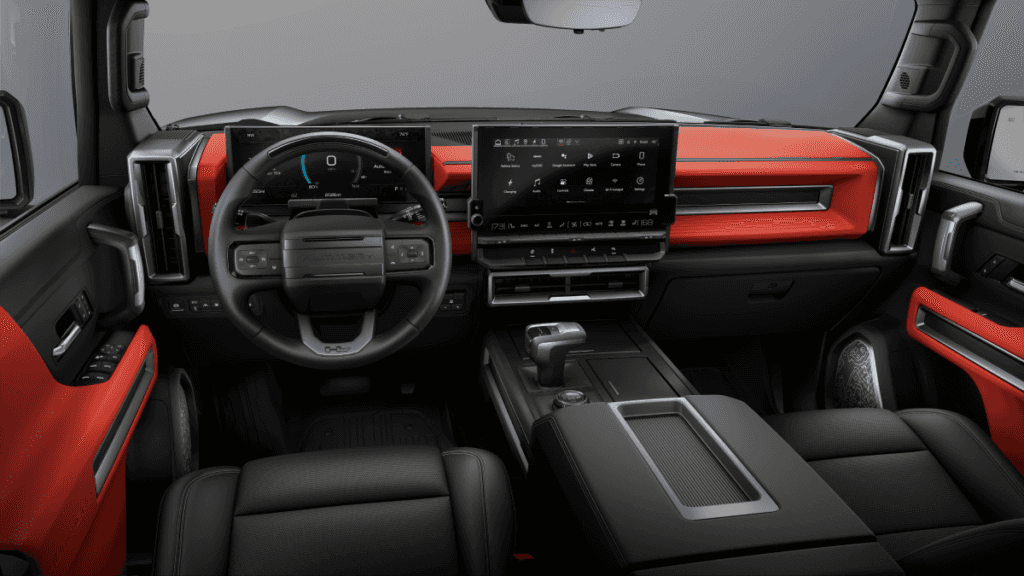
Hummer EV SUV Infotainment System
One of the key features of the GMC Infotainment System is its seamless integration with your smartphone, allowing you to access apps, navigation, and media directly through the vehicle’s touch screen or voice commands via Apple CarPlay or Android Auto. Taking the time to connect your device and customize the app layout will significantly enhance your driving experience, ensuring your favorite tools and entertainment options are always just a tap or spoken request away.
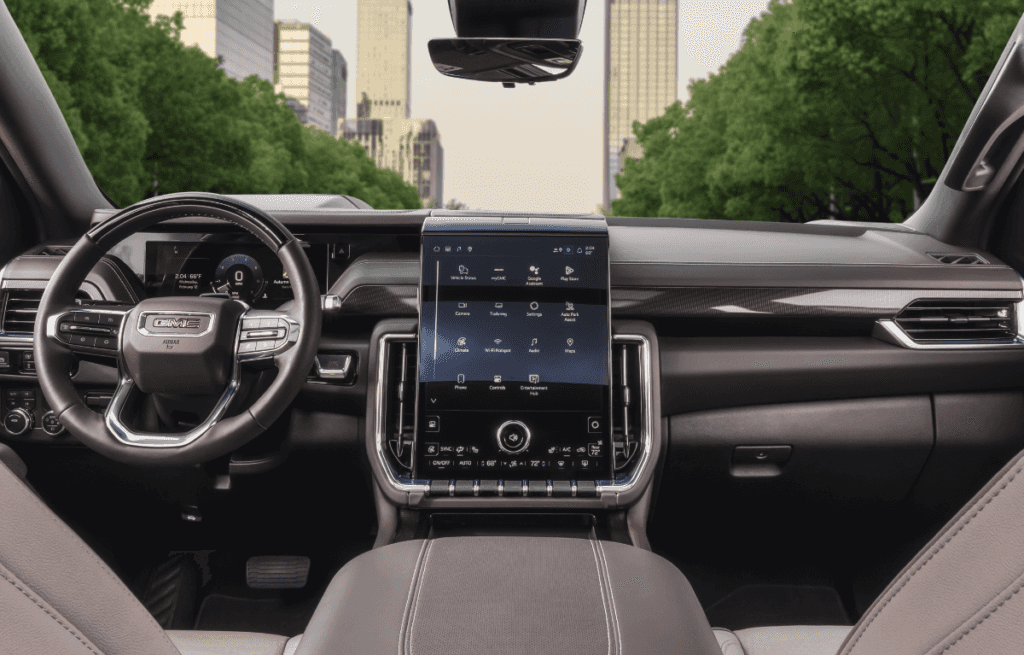
2026 GMC Sierra Elevation Infotainment System
Getting Started: Your Personalized Driving Hub
The Infotainment System in your GMC is engineered for an intuitive, smartphone-like experience.
1. Set Up Your User Profile
The foundation of a personalized experience is your user profile. This is where your individual preferences are stored.
- Navigate to the Profile Icon: On your Infotainment System’s home screen, tap the User/Profile icon.
- Create Your Profile: Follow the prompts to create a new profile. You may be asked to enter a full name and even select a profile picture.
- Link Your Key Fob: During or after setup, you’ll have the option to link your profile to your key fob. This ensures that your preferred settings for navigation, audio levels, and screen layout automatically load every time you enter the vehicle.
- Sign In to Accounts: Sign in to your Google Account on the Infotainment screen. This is key to enabling the full, personalized functionality of Google built-in, including syncing your saved Home and Work addresses to Google Maps.
2. Embrace Voice Control
Voice commands are the safest and easiest way to control your system while driving. Your GMC makes it simple to use the voice assistant of your choice:
- Google Assistant: For vehicles with available Google built-in, you can simply say “Hey Google” or press and release the Push-to-Talk button on your steering wheel. Use it to navigate, call a contact, or play music from your Google Play apps.
- Amazon Alexa Built-in: If equipped, open the Alexa app on your screen and log into your Amazon account. You can then use the wake word “Alexa” or press the Push-to-Talk button (if you’ve set Alexa as the default voice system) to:
- Control compatible smart home devices (e.g., “Alexa, lock the front door”).
- Ask for real-time traffic or weather updates.
- Play media from linked streaming services.
3. Connect Your Smartphone
Whether you use Apple CarPlay® or Android Auto™, connecting your phone integrates its core functions directly onto your GMC’s display.
- Pair via Bluetooth®: Follow the on-screen prompts to pair your compatible smartphone. Most newer GMC models support a wireless connection, eliminating the need for a cable.
- Access Apps: Once connected, you can use compatible apps like phone, messaging, and music directly from the Infotainment screen, often utilizing your phone’s native voice assistant (Siri or Google Assistant).
Tips and Tricks to Personalize Your Ride
Your GMC’s advanced technology is designed to adapt to you. Use these tips to truly make the Infotainment System your own:
| Customization Area | How to Personalize | Why it Matters |
| Home Screen Layout | Tap and Hold any app icon on the home screen until it pulses, then drag it to a new location, just like a smartphone. | Put your most-used apps (like Navigation, Phone, or Music) in the most accessible spots. |
| Navigation Preferences | In Google Maps (part of Google built-in), go to Settings to customize things like route options (avoid tolls, highways) or appearance (e.g., satellite view). | Get directions that are tailored to your driving style and commute. |
| Favorites & Presets | In the Radio or Media apps, save your favorite stations or streaming sources for one-touch access. | Quickly jump to your preferred audio without searching or distracting yourself. |
| Climate and Comfort | Your profile will typically save your last climate control settings and even seat adjustments (on equipped models). | Enjoy instant comfort when you start the vehicle, especially if your GMC is shared by multiple drivers. |
Explore Premium GMC Technology
The Professional Grade standard of GMC is about more than just durability and capability—it includes seamless, premium technology that makes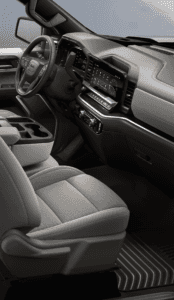 your time behind the wheel better. Stop by Robertsons GMC Truck, Inc., one of the trusted GMC dealers in Massachusetts, today to personally explore the intuitive, connected experience of the GMC Infotainment System.
This cutting-edge system offers features like wireless Apple CarPlay® and Android Auto™ integration, a large diagonal touchscreen display, and available Google built-in functionality—giving you hands-free access to navigation, music, apps, and more. Beyond connectivity, many GMC models elevate your command with innovations such as the ProGrade™ Trailering System for confident towing, and available Super Cruise™ driver-assistance technology, defining a new era of hands-on-the-wheel, eyes-on-the-road convenience.
*See your dealer for details. Vehicle user interface is a product of Google, Inc., and its terms and privacy statements apply. Requires an eligible vehicle and data plan. Google, Google Play, Android Auto, and Google Maps are trademarks of Google LLC. Alexa and all related logos are trademarks of Amazon.com, Inc. or its affiliates. Apple CarPlay is a trademark of Apple Inc. Android Auto is a trademark of Google LLC. Requires compatible smart home device. Full functionality requires a compatible device and/or an active service plan.






0 comment(s) so far on Making the Most of Your GMC Infotainment System